

Overview
This guide explains how to create Custom Cohorts that incorporate Audience Imports—external user lists or segments from partners or third-party data providers.Prerequisites:
- Audience Imports configured and actively importing data
- Access to the Permutive Dashboard with cohort creation permissions
Steps
1
Verify Audience Import
Ensure your Audience Import has been configured and is successfully importing data. Check the import status in the Connectivity section of the Dashboard.
2
Create new cohort
Navigate to Custom Cohorts and click + Add Cohort.
3
Add behavioral rules (optional)
Set up any additional first-party or behavioral rules as needed. You can combine Audience Imports with your own data.
4
Add Audience Import condition
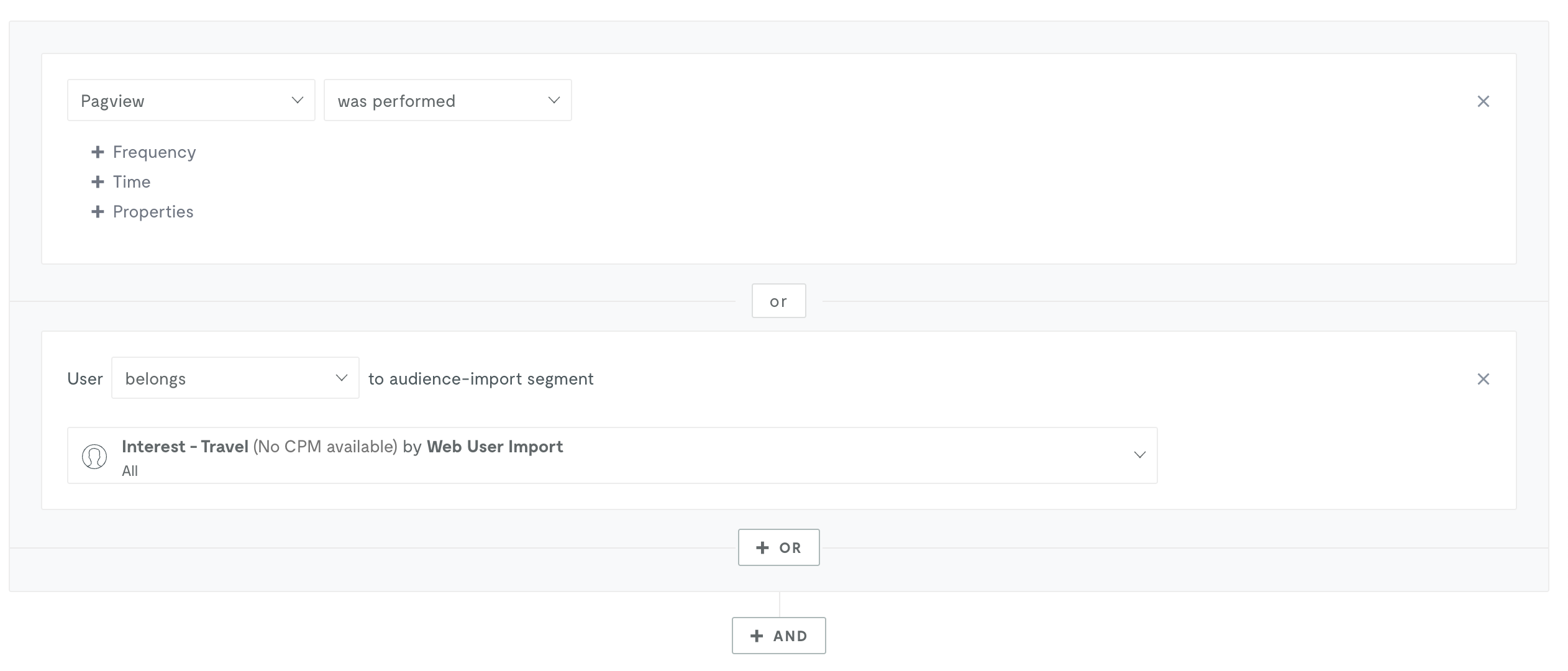
Click +OR or +AND and then select Audience Imports from the condition type dropdown.
5
Select import
Select the relevant import from the dropdown list.
6
Save
Calculate the audience size and save the cohort.
Understanding Audience Size for Import Cohorts
When you create a cohort that includes audience import conditions, you may notice that the Predicted Audience Size (PAS) is significantly larger than the Live Audience Size (LAS) immediately after deployment. This is expected behavior. Why this happens:- PAS is a historical estimate. It is calculated server-side using the past 30 days of data, including imported identifiers resolved against the identity graph. This means PAS can reflect users who have not visited your properties recently.
- LAS counts only users evaluated since deployment. LAS is updated periodically (approximately every 4 hours) as users interact with your properties. Imported users must return to your site or app before they can be counted in LAS.
- No backfill. LAS does not retroactively count users who qualified before the cohort was deployed. It only counts users going forward from the moment of deployment.
- Identity resolution is progressive. For imported users identified by external identifiers (such as hashed emails), the SDK must match the imported identity to a Permutive user ID when the user visits. This matching happens over time as users return.
- LAS will start at zero and grow over the first days and weeks as imported users visit your properties.
- The rate of growth depends on your traffic volume and how frequently imported users visit.
- After approximately 30 days, LAS should stabilize and more closely reflect PAS (assuming consistent user behavior).
- LAS may never fully reach PAS, because not all historically qualifying users may return within the cohort’s recency window.
If LAS remains at zero for more than 48 hours after deployment, verify that the audience import is active and ingesting data, and that the Permutive SDK is deployed on the properties where imported users are expected to visit. Also check that imported identifiers are correctly mapped and match the identity graph.
Use Cases
Next Steps
Configure Imports
Set up Audience Imports
Create Basic Cohorts
Learn cohort creation fundamentals
Back to Custom Cohorts
Return to product overview