

Overview
This guide explains how to export a comprehensive report of all cohorts in your project for analysis, documentation, or sharing with your team.Prerequisites:
- Access to the Permutive Dashboard
Steps
1
Navigate to Custom Cohorts
Go to Custom Cohorts in the Permutive Dashboard.
2
Click Export
Click the Export button in the toolbar.
3
Select date range
Select the date range for the export. The default date range is set to the last 30 days.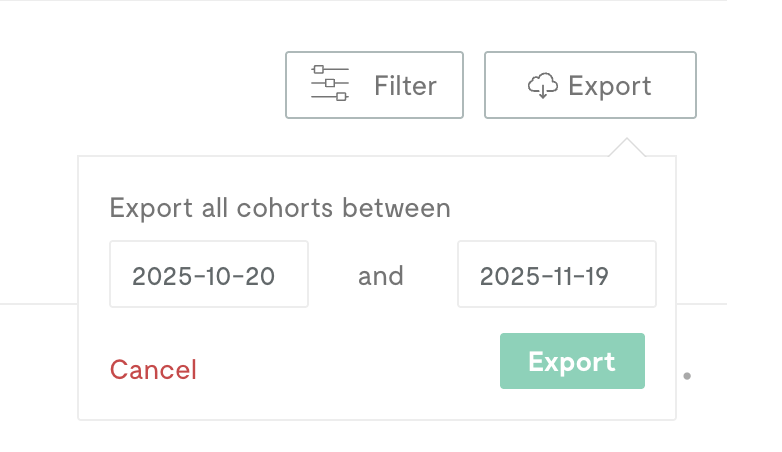
4
Generate report
Click Export to generate the report. The export may take up to a minute to process. Once complete, the file will download automatically to your browser’s download location.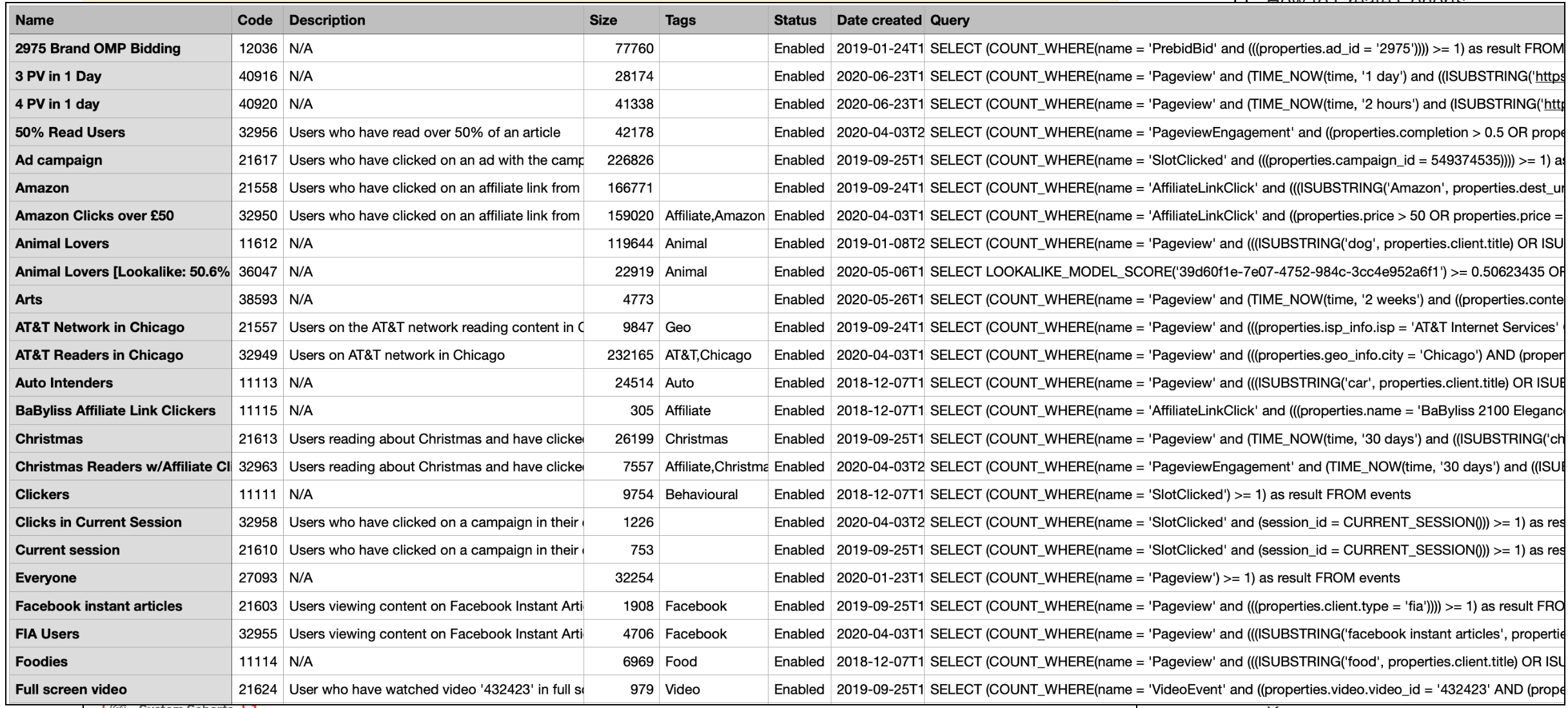
What’s Included
The exported report includes all cohort metadata and logic:- Cohort name and description
- Cohort code
- Tags
- Audience size
- Precision type
- Date created
- Status (Enabled/Disabled)
- Full cohort logic
The date range only affects the Audience Size column in the export. Cohorts created after the selected date range will still appear in the exported list but will show an Audience Size of 0. The report includes all cohorts in your project regardless of which workspace you are currently viewing.
Next Steps
Create a Cohort
Build a new audience segment
Back to Custom Cohorts
Return to product overview