

Overview
This guide walks you through creating a Custom Cohort in the Permutive Dashboard. Custom Cohorts let you define precise audience segments based on user behaviors, properties, and data sources.Prerequisites:
- Access to the Permutive Dashboard with cohort creation permissions
- Permutive SDK deployed and tracking events
Steps
1
Navigate to Custom Cohorts
In the Permutive Dashboard, go to Custom Cohorts and click the + Add Cohort button.
2
Name your cohort
Give your cohort a unique, descriptive name and add relevant tags for organization or a description of the cohort. The description and tags are optional to include but can be helpful for discovery and cohort management later on.
3
Select an event
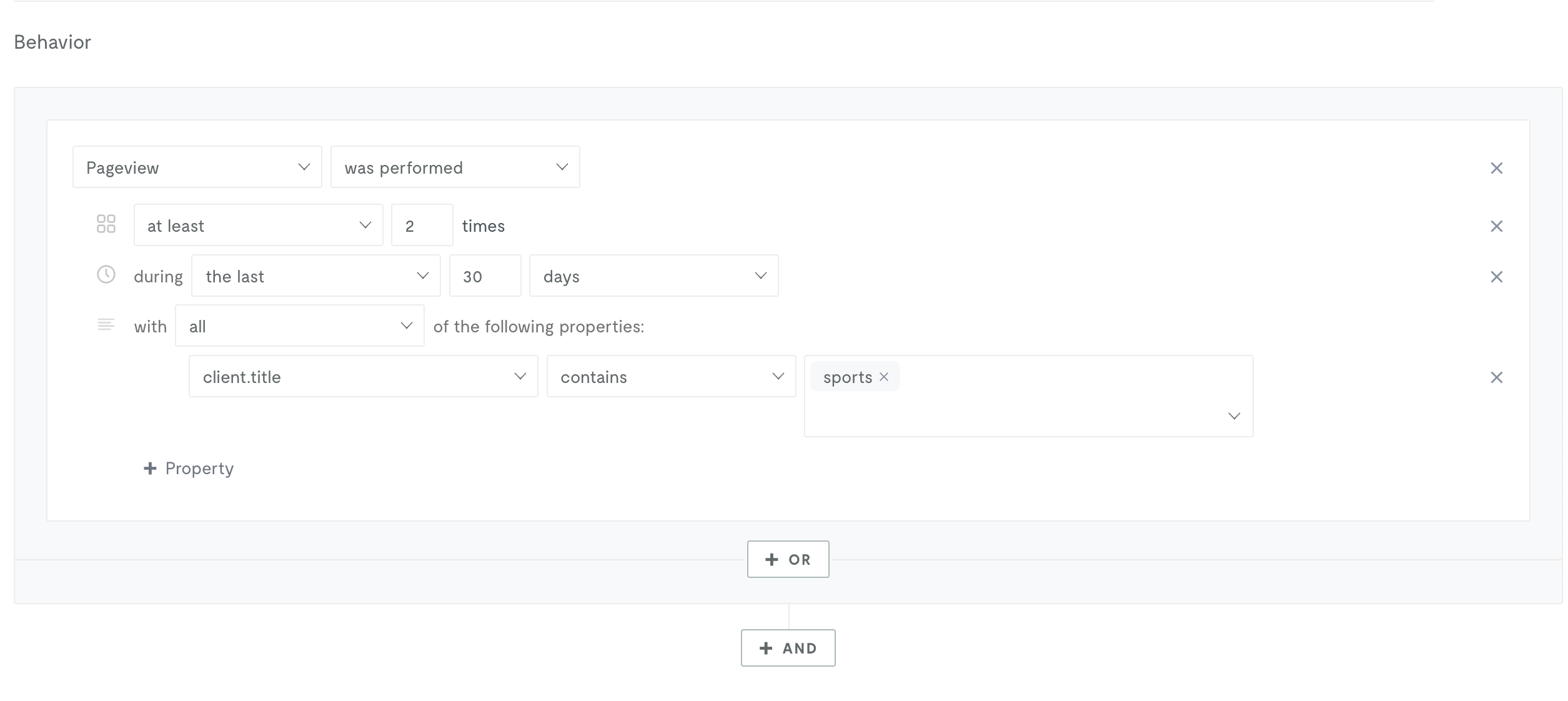
In the Cohort Builder, select the event you want to base your cohort on (e.g., Pageview, VideoView, custom event, etc.).
4
Define targeting criteria
Configure your targeting using:
- Properties: Filter based on event properties like URL, title, or custom properties
- Recency: Specify the time window (e.g., “in the past 30 days”)
- Frequency: Set how many times the action must be performed (e.g., “at least 3 times”)
5
Add conditions
Chain multiple conditions together using AND and OR logic to create complex targeting rules.
6
Calculate audience size
Click Calculate next to Audience Size to see how many users would have qualified for this cohort over the past 30 days. This is the Predicted Audience Size (PAS) — a historical estimate useful for forecasting scale. Once the cohort is saved and deployed, a separate Live Audience Size (LAS) metric tracks users as they are evaluated (updated approximately every 4 hours). For more details, see Predicted and Live Audience Size.
7
Save and deploy
If the audience size meets your needs, click Save to deploy the cohort.
Tips
Next Steps
Activate Your Cohort
Send your cohort to advertising platforms
Targeting by ISP
Target users based on Internet Service Provider
Using Audience Imports
Build cohorts from external data sources
Back to Custom Cohorts
Return to product overview