

Usage Issues
Overview
The Permutive Chrome Extension allows publishers to validate their Permutive deployment directly in the browser. It provides real-time visibility into what data is being collected, whether there are any schema errors, which cohorts a user belongs to, and whether ad requests are being targeted correctly with Permutive cohorts. The extension is a diagnostic and debugging tool designed for publishers and their technical teams to verify that their Permutive SDK integration is functioning correctly across event tracking, cohort evaluation, ad targeting, and Prebid configuration.Why Use the Chrome Extension?
Validate your deployment in real time — Instantly verify that Permutive is collecting data correctly on any page with the web JavaScript SDK deployed. See every event request, its payload, and whether it was accepted or rejected. Debug schema and tracking errors — When events are rejected, the extension shows exactly why, including detailed error messages for schema rejections. Verify ad targeting — Confirm that Google Ad Manager ad units are being targeted with Permutive cohorts. See at a glance whether each ad request used real-time cohorts, cached cohorts from a previous page, or was not targeted at all. Inspect Prebid configuration — Check that Prebid.js is correctly configured for header bidding with Permutive cohorts, including module installation status, bidder configuration, and which cohort types are being passed in auctions.Concepts
Definitions
- Organization ID: Your unique organization identifier. You can find this ID by clicking your name in the top right corner and click Workspace Settings from the drop-down menu. Required to configure the extension.
- Event Request: A data payload sent from the Permutive SDK to Permutive’s servers when a user action is tracked (e.g., Pageview, VideoView, or custom events).
- Schema Rejection: An event that was rejected because its properties did not match the expected schema definition. The extension displays detailed error messages explaining the mismatch. See Creating & Updating Event Schema for how to define and modify schemas.
- Real-Time Targeting: Ad units targeted with cohorts computed by the SDK on the current page before the ad request was sent. Indicated by a star icon in the Ads view.
- Cached Targeting: Ad units targeted with cohort data from local storage that was computed on a previous page, sent before the SDK was initialized on the current page. Indicated by a check icon in the Ads view.
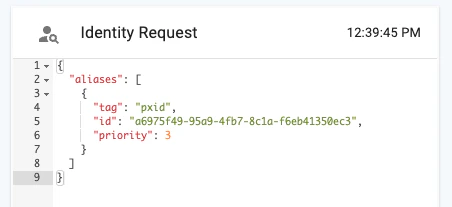
- Identity Request: An event that passes user aliases (identifiers) to Permutive for identity resolution.
Workflows
Installation and Setup
After installing the Permutive Chrome Extension from the Chrome Web Store, you configure it with your Organization ID. This links the extension to your Permutive workspace and enables the diagnostic features.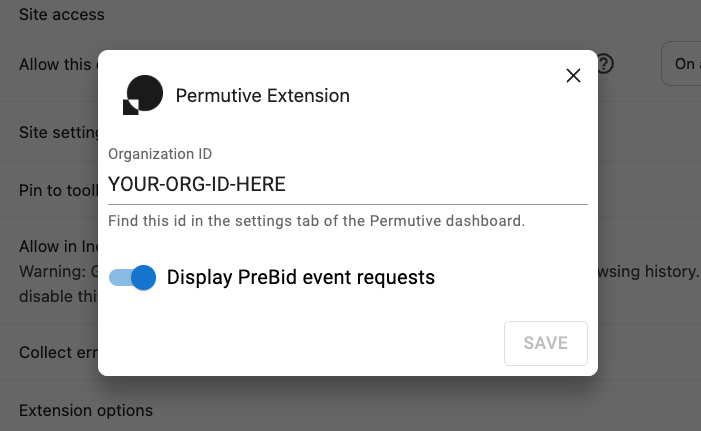
Opening the Extension
When the web JavaScript SDK that is associated with your organization is detected, the Permutive extension icon should automatically turn black and the extension should pop open on the right. You can minimize it by clicking on the black Permutive icon.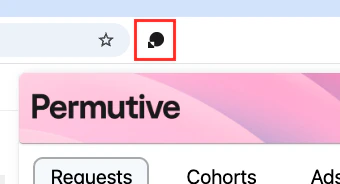
Inspecting Event & Identity Requests
The Requests view shows all Permutive event and identity requests on the current and previous pageview. Each event request displays a status indicator: a check for successful requests or an “x” for rejected requests. Clicking on an event name reveals its full payload and properties. For rejected events, the extension shows the specific reason for rejection, such as an unknown event type or a schema validation error. The example below shows an event being rejected because it was not defined in the schema.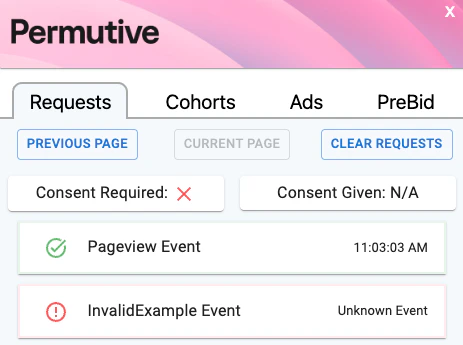
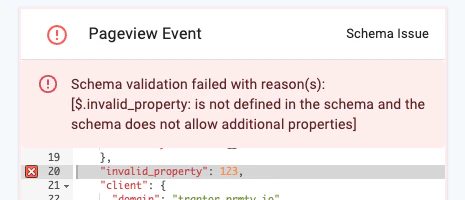
Events are generally rejected for one of two reasons: the event type is unknown, or the event properties fail schema validation. For schema rejections, the extension shows detailed error messages when you inspect the event properties. To fix schema issues, see Creating & Updating Event Schema.
Viewing Cohort Membership
The Cohorts view displays all cohorts that the current user falls into. Cohort codes are shown, which can be looked up in the Permutive Dashboard to find the corresponding cohort names.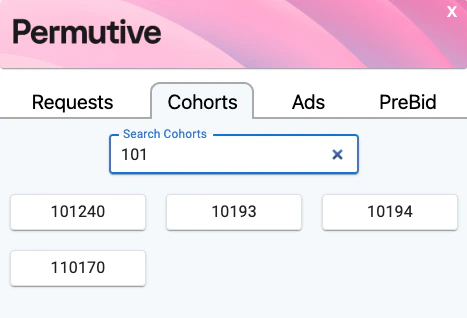
Verifying Ad Targeting
The Ads view provides an overview of all Google Ad Manager ad requests on the current page and whether they were targeted with Permutive cohorts. Each ad request shows a status indicator:- Star — Targeted with real-time cohorts computed on the current page before the ad request was sent.
- Check — Targeted with cached cohorts from local storage, sent before the SDK was initialized on the current page.
- Circled exclamation point — Not targeted with Permutive cohorts.
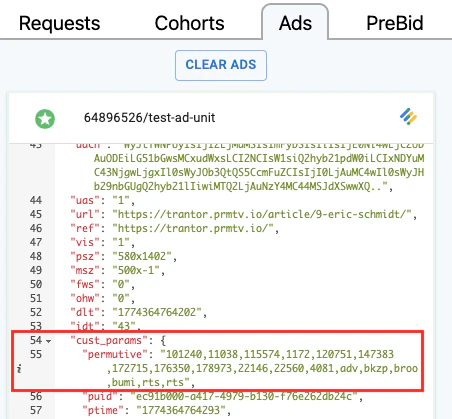
cust_params.permutive property have the rts flag appended, it means the ad was targeted with real-time cohorts.
The example below shows an ad having a star as the status indicator. This is because the rts flag was included in the cohort list, marking them as real-time cohorts.
Checking Prebid Configuration
The Prebid view allows you to verify your Prebid.js header bidding integration with Permutive. It shows:- Whether the default required Prebid modules are installed correctly
- Defined bidders and their configuration
- Which cohort types (custom and standard) are being passed in auctions
- All red “x” marks under “Cohorts Passed In Auctions” indicate a possible incorrect installation.
- Red exclamation marks under “Prebid Configuration Checks” combined with green checks under “Cohorts Passed in Auctions” indicate a custom configuration.
Reviewing Consent Framework
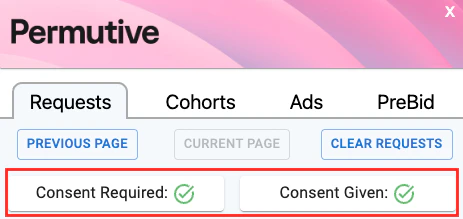
The extension also shows consent framework behavior on the current page, indicating whether a user has given consent and whether consent is required. How consent is setup and managed is up to your legal and developer teams. The example below shows a deployment where consent is not required and the SDK does not wait on consent to be given.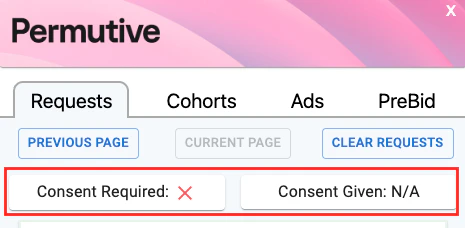
Troubleshooting
Extension icon is not turning black on a page with Permutive
Extension icon is not turning black on a page with Permutive
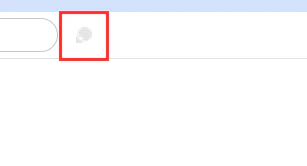
The extension icon turns black when it detects Permutive on the current page. If the icon remains grey:Solution:
- Verify that the Permutive SDK is deployed on the page by checking the browser developer console for Permutive-related scripts
- Ensure you have entered the correct Organization ID in the extension options (right-click the extension icon > Manage Extension)
- Try refreshing the page after configuring the extension