

Overview
In Permutive, an event schema defines the structure of data collected through events and their properties. Designing your schema is an iterative process. You are not locked into an initial configuration — schemas can be extended over time as your data collection needs evolve. Permutive enforces schemas at ingestion time to ensure data consistency. Events that do not conform to the defined schema are rejected entirely.Schema Structure
Your event schema is managed in a Google Sheet that is shared with your organization and the Permutive team. Below is an example of what the schema sheet looks like: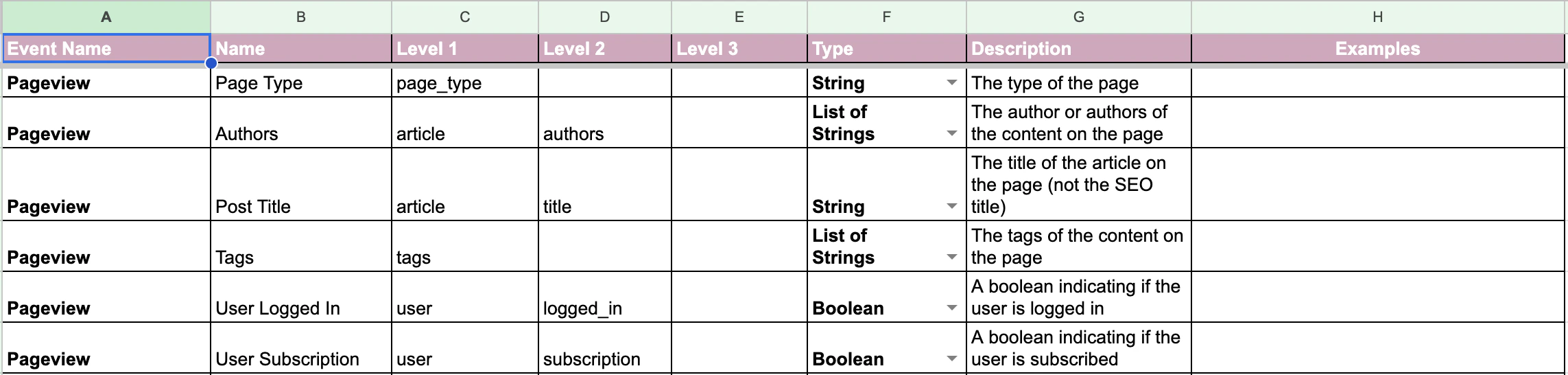
How the Level Columns Map to JSON
The Level 1, 2, and 3 columns define where a value lives in the nested JSON payload sent to Permutive. For example, the “Authors” row in the screenshot above hasarticle in Level 1 and authors in Level 2, which translates to:
page_type in Level 1 and no deeper nesting translates to:
Full Event Payload Example
Below is an example of a Pageview event custom payload based on the schema shown above:Which Events Can Be Edited?
Permutive provides two categories of events: Standard events are collected automatically when you deploy the SDK. These include Pageview, Engagement, and Video events. Of the standard events, only the Pageview event schema can be extended with custom properties. You can add as many custom properties as needed to the Pageview event. Custom events are events you define to track behaviors specific to your data collection needs. Using the SDK functionpermutive.track(), you can track custom events:
Before adding a new custom event, confirm with your Customer Success Manager (CSM) that your contract allows additional custom events on the platform.
How to Edit the Schema
All schema changes are made in your Google Sheet. Here is how each column should be edited: Event Name (Column A) — When adding a new custom event, select a new row and enter the event name. How it appears in the sheet is how it will be displayed in the Dashboard. Avoid special characters. Once changes have been pushed to production, the event name cannot be changed. Name (Column B) — This is the Dashboard display name of the property. Because this value is only visible in the Dashboard, you can edit it at any time, even if it is already in production. A production update will still be needed for changes to take effect. Level 1, 2, 3 (Columns C, D, E) — Enter the path to your leaf-level property. These columns are not editable once pushed to production. Type (Column F) — The data type for the property. This is not editable once pushed to production. Description (Column G) — Not required, but highly recommended. A brief description clarifies the property’s purpose for team members building cohorts. Examples (Column H) — Not required, but highly recommended. Providing examples illustrates what values are expected for the property.How to Push Schema Changes to Production
Once you have finished editing your schema in the Google Sheet:1
Validate your edits
Review all new or modified rows to ensure event names, property paths, and data types are correct. Once pushed to production, these fields cannot be changed.
2
Notify Permutive
Contact Support to request that your changes be pushed to production.
3
Verify the update
After the update has been applied, your deployment documentation will be updated to reflect the changes. Use the Events menu item in the Dashboard or the Permutive Chrome Extension to verify the new properties are being collected correctly.
Correcting Published Properties
The following fields cannot be edited once they are pushed to production:- Event Name
- Level 1, 2, 3 (property path)
- Type
1
Add a new row in the Google Sheet
Re-add the custom event or property in a new row using a similar but distinct name. For example, if
browserLanguage has the wrong data type, add a new property called browserLanguageString with the correct type.2
Notify Permutive of the correction
Contact Support with details of the changes you made and which event or property is incorrect. A member of the Technical Services team will hide the old event or property from the Dashboard so that cohorts are not accidentally built with it.
3
Update your tracking code
Update your implementation to send data under the new property name.
4
Check for dependent cohorts
Verify with your team that no existing cohorts depend on the old property or event before fully deprecating it.
Schema Enforcement and Validation
Permutive enforces event schemas strictly. When an event is tracked, the payload is validated against your published schema. If the payload does not match, the entire event is rejected and no data from that event is collected. This means:- Every property in the payload must be defined in the schema.
- Every property value must match its declared data type.
- If you fire a custom event or property that has not been defined in your schema, it will be rejected and that entire event’s data will not be collected.
Troubleshooting
There are two key ways to identify schema errors:- Event Rejections Dashboard — The central way of checking for schema errors across all of your domains and platforms. Contact your CSM to get access to your event rejections dashboard.
- Permutive Chrome Extension — Pinpoint schema errors during your browsing experience on the web. The extension displays each event payload and flags validation errors as they occur.
Common Validation Errors
Undefined property error
Undefined property error
A property in the event payload is not defined in the schema.Solution: Add the property to your schema in the Google Sheet and request a production push, or remove the property from your tracking code.
Data type mismatch
Data type mismatch
A property value does not match the expected type (e.g., sending a string where a number is expected).Solution: Review the Type column in your schema Google Sheet and update your tracking code to send the correct type.
Null or undefined required property
Null or undefined required property
A required property is missing or has a
null/undefined value.Solution: Ensure your data layer or tracking logic always provides a valid value for required fields. Consider delaying event tracking until required data is available.Property name typo or case mismatch
Property name typo or case mismatch
Property names are case-sensitive. For example,
articleTitle and articletitle are treated as different properties.Solution: Compare property names in your tracking code against the Level columns in your schema Google Sheet character by character.Event or property not defined in the schema
Event or property not defined in the schema
If you fire a custom event or property that has not been defined in your schema, the entire event is rejected and no data is collected.Solution: Ensure any custom event or property is defined in the schema Google Sheet and pushed to production before data is passed to it.
Recommended Debugging Workflow
- Reproduce the issue on a page where the event should fire.
- Open the Permutive Chrome Extension and check whether the event appears and whether any errors are flagged.
- Inspect the browser console for network errors (HTTP 400 responses) on requests to Permutive.
- Compare the event payload in the network request against your schema definition in the Google Sheet.
- Correct the tracking code or update the schema as needed.
- Verify the fix by reloading the page and confirming the event is accepted without errors.
Quick Reference
- You can always add new properties to your schema via the Google Sheet.
- Event names, level paths, and data types are immutable after being pushed to production.
- Property display names, descriptions, and examples can be edited at any time.
- Events with payloads that do not match the schema are rejected entirely.
- To correct an immutable field, create a new property in the Google Sheet and contact Support to hide the old one.
- All schema changes must be pushed to production by the Permutive Technical Services team.
Next Steps
Events
Learn more about standard and custom events in Permutive
Contact Support
Get help with schema changes or troubleshooting