> ## Documentation Index
> Fetch the complete documentation index at: https://docs.permutive.com/llms.txt
> Use this file to discover all available pages before exploring further.
# Optimization
> Optimize campaign performance and audience targeting with AI-driven recommendations
export const NoBadge = () => {
return
No
;
};
export const YesBadge = () => {
return
Yes
;
};
## Overview
**Optimization** enables publishers using Google Ad Manager (GAM) to understand cohort performance and identify opportunities to improve in-flight campaign delivery and CTR performance. The product provides insight into how individual cohorts are driving impressions and clicks for campaigns, along with AI-driven recommendations for cohorts that could improve campaign performance.
Publishers can view their GAM campaigns, analyze how different cohorts are performing, and receive intelligent recommendations for new targeting opportunities—all without the time-consuming manual process of extracting and analyzing cohort-level data from GAM.
## Why Use Optimization?
**Automate cohort performance analysis** — Optimization automates the ingestion and analysis of cohort performance data from GAM, eliminating the need for time-consuming manual data extraction and analysis. Get instant visibility into how your cohorts are driving campaign delivery and performance.
**Receive AI-driven targeting recommendations** — See recommendations for cohorts you're not currently targeting that have a high propensity to click on your campaign or offer incremental user reach to drive increased delivery. The AI ensures recommendations align with your campaign's targeting intent.
**Make data-driven optimization decisions** — Understand which cohorts are contributing to campaign success and troubleshoot any delivery issues with cohort-level performance data including impressions, CTR, and viewability metrics.
## Concepts
### Definitions
* **Google Ad Manager (GAM)**: The ad server currently supported for the Optimization product. Publishers use GAM to set up and manage digital advertising campaigns. GAM is the primary source of truth for campaign impression, click, and viewability data.
* **Order/Campaign**: An Order in GAM (sometimes referred to as a campaign) represents a configuration for advertising delivery on publisher sites. For direct campaigns, an order includes all targeting criteria (ad units, sites, audiences) and usually hosts the campaign creative.
* **Line Item**: A sub-division of an Order in GAM that enables publishers to define more granular targeting strategies and delivery schedules within a campaign. Multiple Line Items are often used to test different audience targeting strategies or manage delivery of different creatives.
* **Targeted Cohorts**: Permutive cohorts that are explicitly set as targeting criteria for a campaign's line items.
* **Non-targeted Cohorts**: Cohorts that are present when an impression is delivered but are not explicitly targeted for the campaign. These cohorts represent potential optimization opportunities.
* **AI-based Recommendations**: Intelligent suggestions for cohorts that could improve campaign delivery or CTR, generated using generative AI to ensure recommendations align with the campaign's existing targeting intent.
## Workflows
### Viewing Campaign Performance
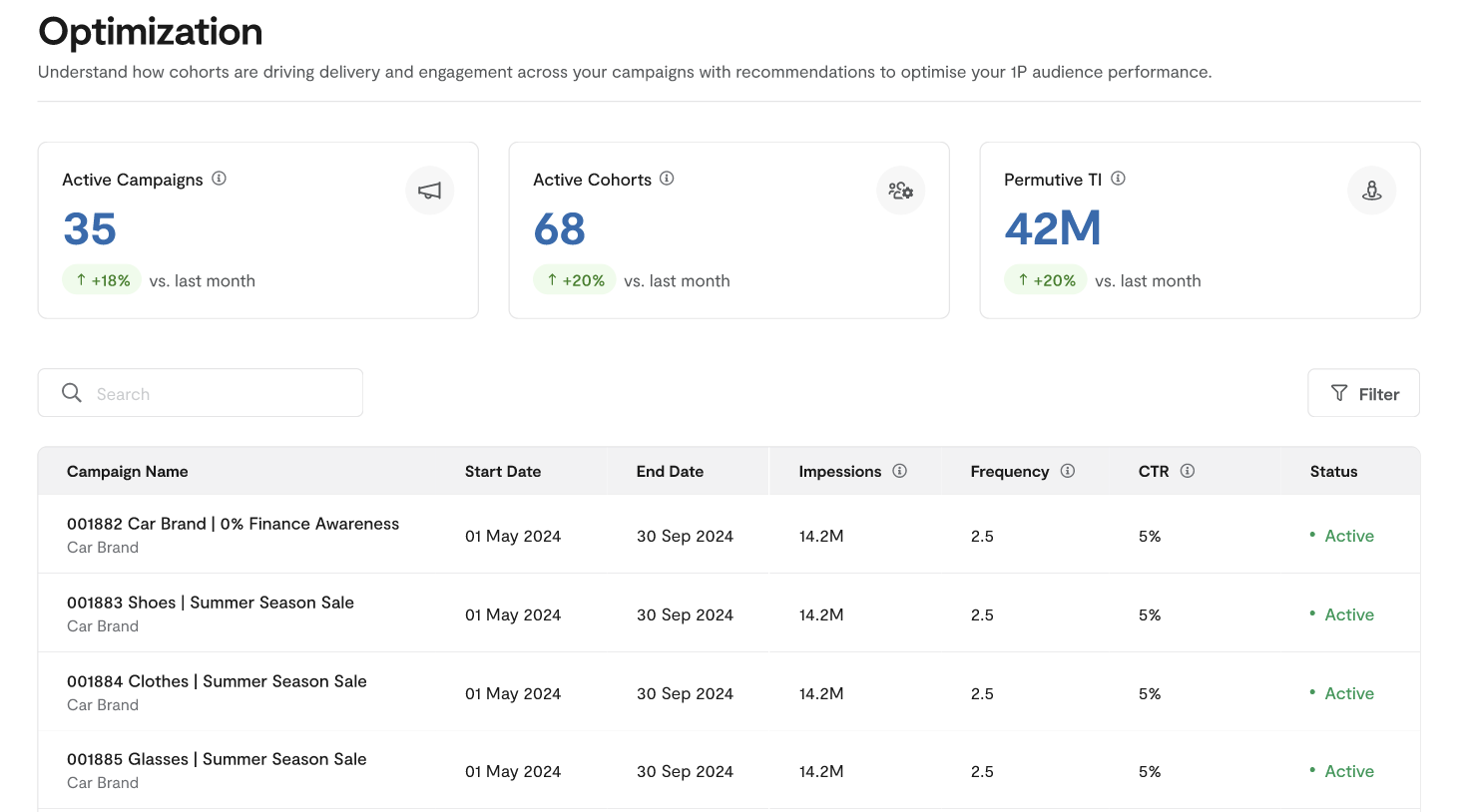
Publishers access the Optimization tool to see an overview of all GAM campaigns with key delivery and performance metrics. The Campaigns List provides aggregate metrics showing how Permutive cohorts are driving campaign delivery over the last 30 days.
 ### Analyzing Cohort Performance
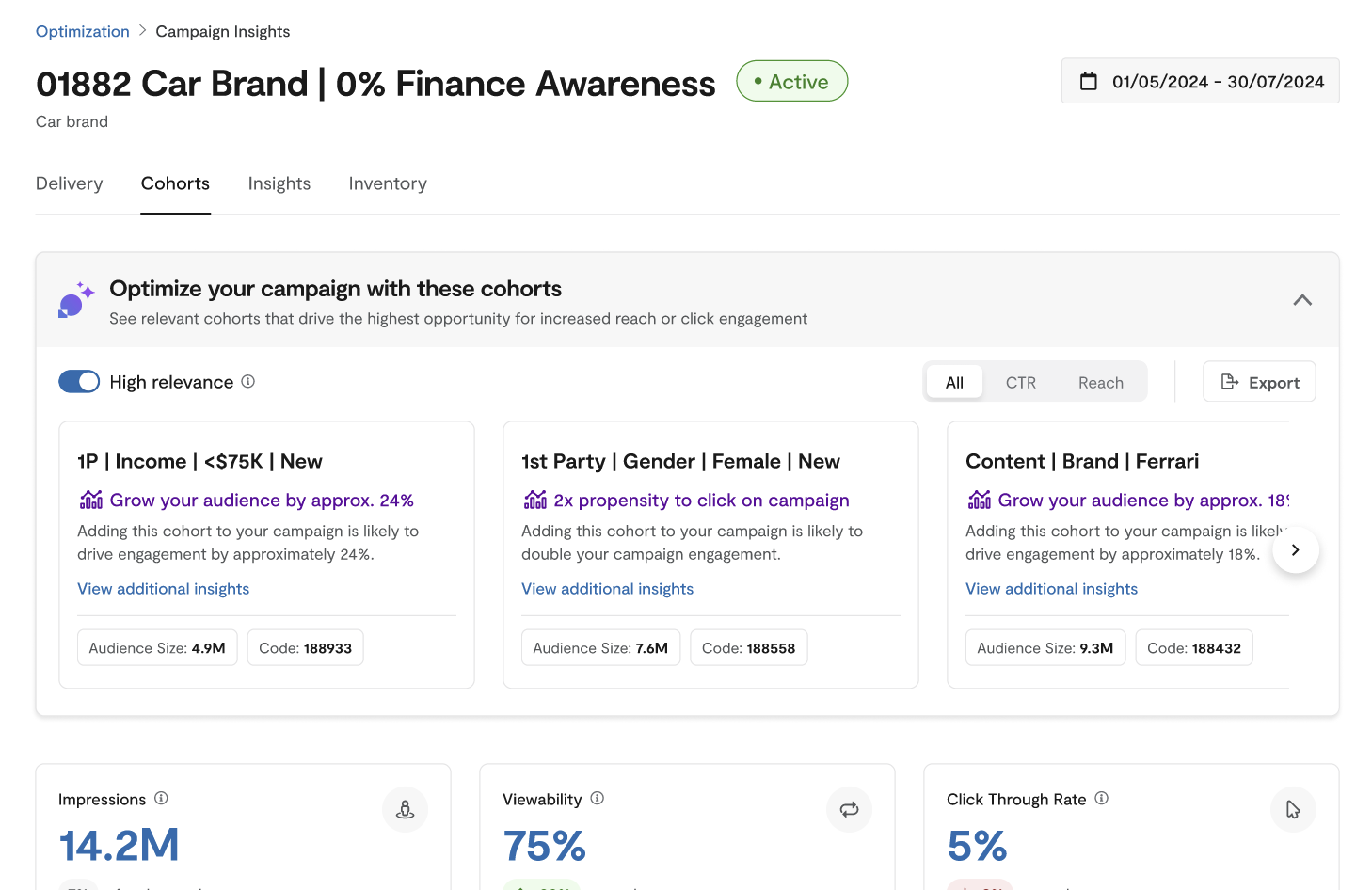
After selecting a campaign, publishers can drill into cohort-level performance data. The Cohort Performance view shows which targeted cohorts are driving impressions and clicks, along with daily performance trends for the top-performing cohorts.
### Analyzing Cohort Performance
After selecting a campaign, publishers can drill into cohort-level performance data. The Cohort Performance view shows which targeted cohorts are driving impressions and clicks, along with daily performance trends for the top-performing cohorts.
 ### Using AI Recommendations
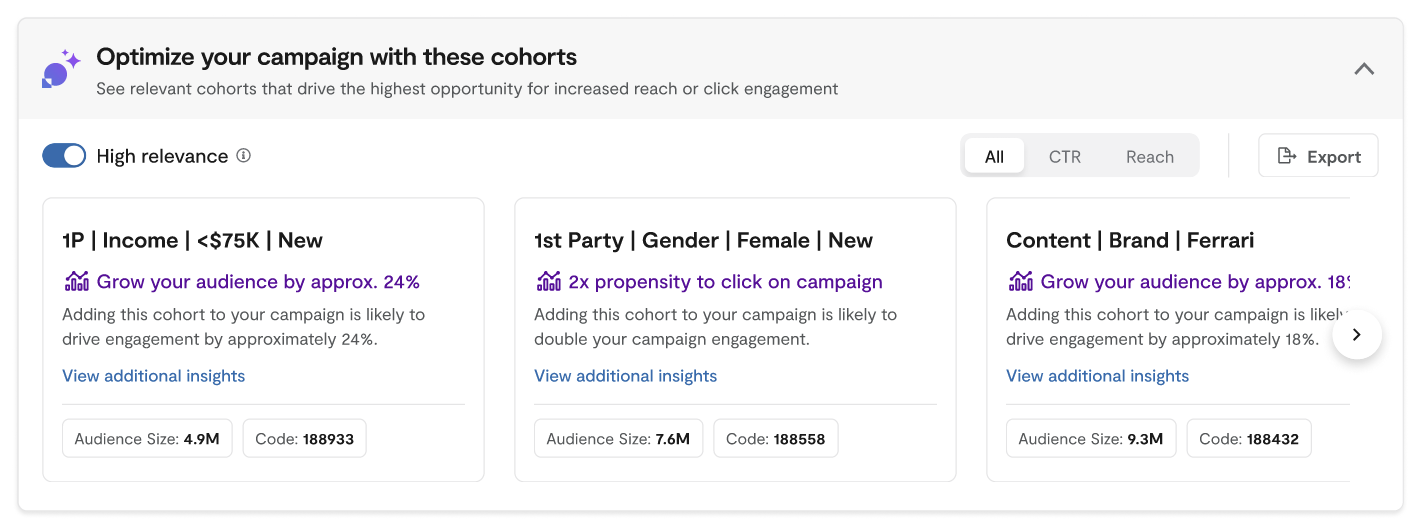
The AI-based recommendations feature suggests cohorts that are not currently targeted but show potential for improving campaign delivery or CTR. Publishers can filter recommendations by relevance and metric type, then view detailed information about each recommended cohort.
### Using AI Recommendations
The AI-based recommendations feature suggests cohorts that are not currently targeted but show potential for improving campaign delivery or CTR. Publishers can filter recommendations by relevance and metric type, then view detailed information about each recommended cohort.
 ## Key Features
### Campaigns List
The campaign list page provides aggregated metrics across GAM orders along with a searchable list of your orders with key delivery and performance metrics.
#### Aggregate Campaign Metrics
These tiles provide an overview of Permutive usage for campaign targeting over the last 30 days with comparisons to the prior 30-day period:
| Metric | Description | Comparison |
| :--------------- | :------------------------------------------------------------------------- | :--------------------------------- |
| Active Campaigns | The number of campaigns that were live in the last 30 days | Compared with the previous 30 days |
| Targeted Cohorts | The number of Permutive cohorts being targeted across all active campaigns | Compared with the previous 30 days |
| Permutive TI | The number of impressions targeted using Permutive data | Compared with the previous 30 days |
#### Campaign List Table
The campaign list is searchable by advertiser name, order ID, and order name. You can filter by campaign status and sort columns.
| Column | Description |
| :------------ | :------------------------------------------------------------------ |
| Campaign Name | Includes the advertiser (if available), order name, and order ID |
| Start Date | The start date of the order |
| End Date | The end date of the order |
| Imps. | The total number of impressions recorded for the order to date |
| CTR | The average click-through rate recorded for the order to date |
| Status | Whether the campaign is active or inactive based on the order dates |
The campaign list and aggregated metrics do not include data from line items set at price priority or lower. Orders without any end date are also currently excluded.
### Cohort Performance
Once you click on a campaign, the Cohort Performance view provides detailed information for optimizing campaign performance.
#### Campaign Header
View key information including order name, date range, and campaign status.
#### Line Items Filtering
When running campaigns with multiple targeting strategies, use the line item filter to focus your analysis on specific line items within the order.
#### Campaign KPIs
View overall performance metrics across the order or selected line items:
* **Impressions**: Total impressions delivered since the order start date
* **CTR**: Average click-through rate achieved
* **Viewability**: Average percentage of viewable impressions
When you apply a line item filter, KPIs update to reflect only the selected line items, with comparison metrics showing how they relate to the total order.
#### Targeted Cohorts Performance Table
See delivery and performance metrics for each cohort targeted across your order or selected line items:
| Column | Description |
| :-------------- | :------------------------------------------------------------ |
| Cohort Name | The name of the targeted cohort |
| Type | The cohort type |
| CTR | The CTR achieved by the cohort based on GAM measurement |
| Viewability | The percentage of viewable impressions for the cohort |
| Impressions (%) | The percentage of total impressions contributed by the cohort |
| Impressions | The number of impressions contributed by the cohort |
#### Daily Performance Chart
Track performance trends over time with a line chart showing impressions, CTR, and viewability for the top 5 cohorts. This helps identify the impact of optimizations and troubleshoot sudden changes in delivery or performance.
### AI-based Recommendations
The recommendations feature suggests cohorts that could improve campaign delivery or CTR performance.
#### Recommendation Filters
* **High Relevance**: Enabled by default, uses generative AI to prioritize cohorts similar to those already targeted for the campaign. Disable to see a broader range of cohorts.
* **Metric Toggle**: Filter cohorts based on the metric you're optimizing (delivery, CTR, or all).
#### Recommendation Cards
Each recommendation card shows:
* **Cohort Name**: The name of the recommended cohort
* **Campaign Opportunity**: Description of the potential reach or CTR uplift opportunity
* **Recommendation Details**: Link to view more metrics and historical campaign information
* **Unique Users**: Number of unique users in the cohort (last 30 days)
* **Cohort ID**: The cohort identifier
#### Recommendation Details
Click on a recommendation to see additional metrics and historical campaign data:
**Cohort Metrics:**
| Metric | Definition | Comparison Metric | Definition |
| :-------------- | :--------------------------------------------------------------------- | :------------------- | :---------------------------------------------------------- |
| UUs | Unique users for the cohort in the last 30 days | % of total audience | Cohort UUs as a percentage of total audience |
| Campaign CTR | CTR based on cohort delivery data for the campaign | vs. campaign average | CTR index comparing cohort to campaign average (e.g., 1.2x) |
| Overlap | Percentage of users in both the target audience AND recommended cohort | vs. total users | Target audience index comparing overlap vs. all users |
| Incremental UUs | Users in the recommended cohort NOT in the target audience | % reach uplift | Percentage uplift vs. target audience (e.g., +74%) |
**Recent Campaigns:**
| Column | Description |
| :---------- | :------------------------------------------ |
| Campaign | Campaign name with order ID |
| Imps. | Targeted impressions the cohort delivered |
| CTR | Targeted CTR of the cohort for the campaign |
| Viewability | Viewability achieved by the cohort |
| Status | Whether the campaign is currently running |
## Guides
### Enabling Optimization for Your Organization
To access the Optimization product, you must meet the following eligibility criteria:
1. Have at least one GAM network integrated in your Permutive dashboard
2. Have enabled the necessary permissions for API reporting (see [GAM API Usage Guide](/guides/platform-guides/gam-api-usage))
3. Have opted in to Permutive's AI product development principles
4. Have at least 100 cohorts activated to GAM (recommended for consistent recommendations)
If you meet these criteria and would like to enable Optimization, please reach out to your Customer Success Manager (CSM).
### Viewing Campaign Performance
In the Permutive Dashboard, go to *Optimization* to access the Campaigns List.
View the aggregate campaign metrics tiles showing active campaigns, targeted cohorts, and Permutive targeted impressions over the last 30 days.
Use the search box to find specific campaigns by advertiser name, order ID, or order name. Filter by campaign status if needed.
Click on any campaign to view detailed cohort performance data.
### Filtering by Line Items
Navigate to the Cohort Performance view for your selected campaign.
Click the Line Items filter button to open the filter modal.
Choose the specific line items you want to analyze. You can select multiple line items.
Apply the filter to update all data on the Cohort Performance page to reflect only your selected line items.
### Understanding AI Recommendations
On the Cohort Performance page, scroll to the AI Recommendations section to see suggested cohorts.
Toggle *High Relevance* on/off based on whether you want recommendations similar to existing targeting. Use the metric toggle to focus on delivery, CTR, or both.
Scroll through the recommendation cards to see potential cohorts. Each card shows the cohort name, opportunity description, unique users, and cohort ID.
Click on a recommendation card to open the details modal with additional metrics, AI relevance explanation, and recent campaign performance data.
Use the cohort ID and performance data to add promising cohorts to your campaign targeting in GAM.
Not all cohorts are eligible for campaign targeting (test cohorts, cohorts using client data, etc.). You can configure which cohorts are available to be shown within recommendations through the use of tags.
To configure cohort restrictions:
1. Create one / multiple tags associated to cohorts that you want to have included in your Optimization instance
2. Contact your Customer Success Manager (CSM) to provide the tag(s) you have defined
3. Technical Services will configure the restrictions for your organization
Once configured, only cohorts associated with the tag will be included in your recommendations. Any new cohorts that you apply the tag to will automatically be included moving forward.
## Data Collection and Analysis
The Optimization product leverages several data sources and analytical models to provide accurate reporting and intelligent recommendations.
### GAM API Data Collection
Optimization ingests data from the GAM reporting API to provide accurate representation of campaign delivery and performance. When onboarding, Permutive backfills at least 3 months of campaign data so you can immediately use the product for live campaigns.
Key points about GAM data:
* Data is collected daily, so impression counts may not exactly match real-time GAM UI data
* For the most up-to-date metrics, refer to GAM directly
* Data is retained over time, enabling access to historical campaign information
For detailed information about GAM API permissions and data collection, see the [GAM API Usage Guide](/guides/platform-guides/gam-api-usage).
### Cohort User Metrics
For metrics such as unique user calculations, overlap, and indices, Optimization leverages SDK event data via the insights architecture. This data is calculated over the last 30 days, making it most relevant for analyzing in-flight campaigns.
## Troubleshooting
If a campaign doesn't appear in the Optimization tool, check the following:
**Campaign Priority Level**: Optimization only displays campaigns at standard priority or sponsorship priority levels. Campaigns at price priority or below are automatically excluded.
**Order End Date**: We currently do not display campaigns with no order end date.
**Solution**: Verify the campaign's priority level and order end date in GAM. If it's at price priority or lower, it will not appear in Optimization.
The Optimization tool requires specific GAM API permissions to access campaign data. Missing or incomplete permissions can prevent campaigns from appearing.
**Solution**: Verify that the Permutive service account ([dfp@permutive.com](mailto:dfp@permutive.com)) has the required permissions:
* Access the interface: Ad Exchange, Delivery, Overview
* Define and deliver ads: Ad units, placements, and key-values (all Permutive-related key-values need to be reportable)
* Orders and line items (with appropriate team assignments if Teams feature is used)
* Reports: Ad exchange reports, Ad manager reports
* User network settings: Change history
See the [GAM API Usage Guide](/guides/platform-guides/gam-api-usage) for complete permission requirements.
The Optimization tool may not work properly with video campaigns or preroll campaigns.
**Solution**: Video campaigns are not currently supported in Optimization. For video campaign analysis, use the Campaign Insights feature instead.
There can be problems with the mapping between GAM network codes and organization IDs in the system, causing campaigns to have data but not be properly associated with your workspace.
**Solution**: If you have multiple GAM network codes, ensure each is properly configured and mapped. Contact Permutive support if campaigns appear for one network but not another.
Optimization data may not exactly match what you see in GAM.
**Solution**: Optimization collects data from GAM on a daily basis, so there may be up to a 24-hour delay. For real-time impression counts, refer to GAM directly. Optimization data is most accurate for historical analysis rather than real-time monitoring.
The AI recommendations section may be empty if there are insufficient cohorts to analyze or if your campaign has not yet delivered enough impressions in order to return statistically significant results. The minimum number of impressions needed varies but typically you will start to see good results once a campaign has delivered 200k+ impressions.
**Solution**: Ensure you have at least 100 cohorts activated to GAM. The recommendation engine needs a sufficient number of cohorts and impressions to identify optimization opportunities. Also verify that cohort restrictions aren't excluding all potential recommendations.
## Environment Compatibility
#### Core Product
| Functionality | Web | iOS | Android | CTV | API Direct |
| :----------------- | :----------- | :---------- | :---------- | :---------- | :---------- |
| Campaign analysis | | | | | |
| Cohort performance | | | | | |
| AI recommendations | | | | | |
Optimization currently only supports web display campaigns served through Google Ad Manager. Video campaigns and other ad servers are not supported.
#### Ad Server Support
| Ad Server | Supported |
| :---------------- | :----------- |
| Google Ad Manager | |
| FreeWheel | |
| Xandr | |
| Other | |
## Dependencies
| Dependency | Required | Description |
| :------------------ | :------- | :--------------------------------------------------------------------------------------------------------------------------------------- |
| GAM Integration | ✓ | At least one GAM network must be integrated in your Permutive dashboard. |
| GAM API Permissions | ✓ | Required permissions must be granted to the Permutive service account ([dfp@permutive.com](mailto:dfp@permutive.com)) for API reporting. |
| Permutive SDK | ✓ | The Permutive SDK must be deployed to track events and enable cohort user metrics calculations. |
| AI Opt-in | ✓ | You must opt in to Permutive's AI product development principles to access AI-based recommendations. |
| Cohort Activation | \~ | At least 100 cohorts activated to GAM is recommended for consistent AI recommendations. |
## Limits
#### Feature Limits
| Feature | Description | Limit |
| :---------------- | :------------------------------------------------------------- | :-------------------------------- |
| Campaign priority | Only standard and sponsorship priority campaigns are supported | Price priority and below excluded |
| Video campaigns | Video and preroll campaigns are not supported | Not available |
| Ad server | Only Google Ad Manager is supported | GAM only |
#### Performance Limits
| Metric | Description | Limit |
| :-------------------- | :---------------------------------------- | :----------- |
| Data refresh | Frequency of GAM data ingestion | Daily |
| Data delay | Maximum delay for campaign data to appear | 24 hours |
| Cohort metrics window | Time window for unique user calculations | Last 30 days |
#### Usage Limits
| SKU | Description | Limit |
| :------------------ | :------------------------------------------ | :----------------------- |
| Optimization access | Number of users who can access Optimization | \[Contact support] |
| AI recommendations | Number of recommendation requests | \[Included with product] |
## FAQ
Optimization currently only supports Google Ad Manager (GAM). Support for other ad servers is being evaluated based on demand and data availability.
Optimization only displays campaigns where the associated line items are set up as sponsorship or standard priority. Campaigns at price priority or below are not included. Additionally, video campaigns are not currently supported.
Optimization also requires campaigns to have an order end date. If your campaign doesn't have an end date associated with it, it won't appear in the Optimization tool.
Data is collected from GAM on a daily basis. As a result, impression counts, clicks, and other metrics may not reflect the exact data you see in your GAM UI. For the most up-to-date metrics on an order or line item, refer to GAM directly.
No, video campaigns are not currently supported in the Optimization product. The tool is designed for web display campaigns served through Google Ad Manager.
Permutive requires specific permissions for the service account ([dfp@permutive.com](mailto:dfp@permutive.com)) including access to Ad Exchange, Delivery, Overview, Ad units/placements/key-values, Orders and line items, and Reports. See the [GAM API Usage Guide](/guides/platform-guides/gam-api-usage) for complete details.
We recommend having at least 100 cohorts activated to GAM to get consistent AI recommendations. The recommendation engine analyzes cohorts that are not currently targeted to identify optimization opportunities.
The AI uses generative AI to analyze the cohorts currently targeted for your campaign and prioritizes recommendations for cohorts that are semantically similar. This helps ensure recommendations align with the original targeting intent of the campaign.
Yes, you can configure cohort restrictions to exclude certain cohorts (such as test cohorts or cohorts using client data) from appearing in recommendations. Contact your Customer Success Manager (CSM) to set up restrictions.
## Key Features
### Campaigns List
The campaign list page provides aggregated metrics across GAM orders along with a searchable list of your orders with key delivery and performance metrics.
#### Aggregate Campaign Metrics
These tiles provide an overview of Permutive usage for campaign targeting over the last 30 days with comparisons to the prior 30-day period:
| Metric | Description | Comparison |
| :--------------- | :------------------------------------------------------------------------- | :--------------------------------- |
| Active Campaigns | The number of campaigns that were live in the last 30 days | Compared with the previous 30 days |
| Targeted Cohorts | The number of Permutive cohorts being targeted across all active campaigns | Compared with the previous 30 days |
| Permutive TI | The number of impressions targeted using Permutive data | Compared with the previous 30 days |
#### Campaign List Table
The campaign list is searchable by advertiser name, order ID, and order name. You can filter by campaign status and sort columns.
| Column | Description |
| :------------ | :------------------------------------------------------------------ |
| Campaign Name | Includes the advertiser (if available), order name, and order ID |
| Start Date | The start date of the order |
| End Date | The end date of the order |
| Imps. | The total number of impressions recorded for the order to date |
| CTR | The average click-through rate recorded for the order to date |
| Status | Whether the campaign is active or inactive based on the order dates |
The campaign list and aggregated metrics do not include data from line items set at price priority or lower. Orders without any end date are also currently excluded.
### Cohort Performance
Once you click on a campaign, the Cohort Performance view provides detailed information for optimizing campaign performance.
#### Campaign Header
View key information including order name, date range, and campaign status.
#### Line Items Filtering
When running campaigns with multiple targeting strategies, use the line item filter to focus your analysis on specific line items within the order.
#### Campaign KPIs
View overall performance metrics across the order or selected line items:
* **Impressions**: Total impressions delivered since the order start date
* **CTR**: Average click-through rate achieved
* **Viewability**: Average percentage of viewable impressions
When you apply a line item filter, KPIs update to reflect only the selected line items, with comparison metrics showing how they relate to the total order.
#### Targeted Cohorts Performance Table
See delivery and performance metrics for each cohort targeted across your order or selected line items:
| Column | Description |
| :-------------- | :------------------------------------------------------------ |
| Cohort Name | The name of the targeted cohort |
| Type | The cohort type |
| CTR | The CTR achieved by the cohort based on GAM measurement |
| Viewability | The percentage of viewable impressions for the cohort |
| Impressions (%) | The percentage of total impressions contributed by the cohort |
| Impressions | The number of impressions contributed by the cohort |
#### Daily Performance Chart
Track performance trends over time with a line chart showing impressions, CTR, and viewability for the top 5 cohorts. This helps identify the impact of optimizations and troubleshoot sudden changes in delivery or performance.
### AI-based Recommendations
The recommendations feature suggests cohorts that could improve campaign delivery or CTR performance.
#### Recommendation Filters
* **High Relevance**: Enabled by default, uses generative AI to prioritize cohorts similar to those already targeted for the campaign. Disable to see a broader range of cohorts.
* **Metric Toggle**: Filter cohorts based on the metric you're optimizing (delivery, CTR, or all).
#### Recommendation Cards
Each recommendation card shows:
* **Cohort Name**: The name of the recommended cohort
* **Campaign Opportunity**: Description of the potential reach or CTR uplift opportunity
* **Recommendation Details**: Link to view more metrics and historical campaign information
* **Unique Users**: Number of unique users in the cohort (last 30 days)
* **Cohort ID**: The cohort identifier
#### Recommendation Details
Click on a recommendation to see additional metrics and historical campaign data:
**Cohort Metrics:**
| Metric | Definition | Comparison Metric | Definition |
| :-------------- | :--------------------------------------------------------------------- | :------------------- | :---------------------------------------------------------- |
| UUs | Unique users for the cohort in the last 30 days | % of total audience | Cohort UUs as a percentage of total audience |
| Campaign CTR | CTR based on cohort delivery data for the campaign | vs. campaign average | CTR index comparing cohort to campaign average (e.g., 1.2x) |
| Overlap | Percentage of users in both the target audience AND recommended cohort | vs. total users | Target audience index comparing overlap vs. all users |
| Incremental UUs | Users in the recommended cohort NOT in the target audience | % reach uplift | Percentage uplift vs. target audience (e.g., +74%) |
**Recent Campaigns:**
| Column | Description |
| :---------- | :------------------------------------------ |
| Campaign | Campaign name with order ID |
| Imps. | Targeted impressions the cohort delivered |
| CTR | Targeted CTR of the cohort for the campaign |
| Viewability | Viewability achieved by the cohort |
| Status | Whether the campaign is currently running |
## Guides
### Enabling Optimization for Your Organization
To access the Optimization product, you must meet the following eligibility criteria:
1. Have at least one GAM network integrated in your Permutive dashboard
2. Have enabled the necessary permissions for API reporting (see [GAM API Usage Guide](/guides/platform-guides/gam-api-usage))
3. Have opted in to Permutive's AI product development principles
4. Have at least 100 cohorts activated to GAM (recommended for consistent recommendations)
If you meet these criteria and would like to enable Optimization, please reach out to your Customer Success Manager (CSM).
### Viewing Campaign Performance
In the Permutive Dashboard, go to *Optimization* to access the Campaigns List.
View the aggregate campaign metrics tiles showing active campaigns, targeted cohorts, and Permutive targeted impressions over the last 30 days.
Use the search box to find specific campaigns by advertiser name, order ID, or order name. Filter by campaign status if needed.
Click on any campaign to view detailed cohort performance data.
### Filtering by Line Items
Navigate to the Cohort Performance view for your selected campaign.
Click the Line Items filter button to open the filter modal.
Choose the specific line items you want to analyze. You can select multiple line items.
Apply the filter to update all data on the Cohort Performance page to reflect only your selected line items.
### Understanding AI Recommendations
On the Cohort Performance page, scroll to the AI Recommendations section to see suggested cohorts.
Toggle *High Relevance* on/off based on whether you want recommendations similar to existing targeting. Use the metric toggle to focus on delivery, CTR, or both.
Scroll through the recommendation cards to see potential cohorts. Each card shows the cohort name, opportunity description, unique users, and cohort ID.
Click on a recommendation card to open the details modal with additional metrics, AI relevance explanation, and recent campaign performance data.
Use the cohort ID and performance data to add promising cohorts to your campaign targeting in GAM.
Not all cohorts are eligible for campaign targeting (test cohorts, cohorts using client data, etc.). You can configure which cohorts are available to be shown within recommendations through the use of tags.
To configure cohort restrictions:
1. Create one / multiple tags associated to cohorts that you want to have included in your Optimization instance
2. Contact your Customer Success Manager (CSM) to provide the tag(s) you have defined
3. Technical Services will configure the restrictions for your organization
Once configured, only cohorts associated with the tag will be included in your recommendations. Any new cohorts that you apply the tag to will automatically be included moving forward.
## Data Collection and Analysis
The Optimization product leverages several data sources and analytical models to provide accurate reporting and intelligent recommendations.
### GAM API Data Collection
Optimization ingests data from the GAM reporting API to provide accurate representation of campaign delivery and performance. When onboarding, Permutive backfills at least 3 months of campaign data so you can immediately use the product for live campaigns.
Key points about GAM data:
* Data is collected daily, so impression counts may not exactly match real-time GAM UI data
* For the most up-to-date metrics, refer to GAM directly
* Data is retained over time, enabling access to historical campaign information
For detailed information about GAM API permissions and data collection, see the [GAM API Usage Guide](/guides/platform-guides/gam-api-usage).
### Cohort User Metrics
For metrics such as unique user calculations, overlap, and indices, Optimization leverages SDK event data via the insights architecture. This data is calculated over the last 30 days, making it most relevant for analyzing in-flight campaigns.
## Troubleshooting
If a campaign doesn't appear in the Optimization tool, check the following:
**Campaign Priority Level**: Optimization only displays campaigns at standard priority or sponsorship priority levels. Campaigns at price priority or below are automatically excluded.
**Order End Date**: We currently do not display campaigns with no order end date.
**Solution**: Verify the campaign's priority level and order end date in GAM. If it's at price priority or lower, it will not appear in Optimization.
The Optimization tool requires specific GAM API permissions to access campaign data. Missing or incomplete permissions can prevent campaigns from appearing.
**Solution**: Verify that the Permutive service account ([dfp@permutive.com](mailto:dfp@permutive.com)) has the required permissions:
* Access the interface: Ad Exchange, Delivery, Overview
* Define and deliver ads: Ad units, placements, and key-values (all Permutive-related key-values need to be reportable)
* Orders and line items (with appropriate team assignments if Teams feature is used)
* Reports: Ad exchange reports, Ad manager reports
* User network settings: Change history
See the [GAM API Usage Guide](/guides/platform-guides/gam-api-usage) for complete permission requirements.
The Optimization tool may not work properly with video campaigns or preroll campaigns.
**Solution**: Video campaigns are not currently supported in Optimization. For video campaign analysis, use the Campaign Insights feature instead.
There can be problems with the mapping between GAM network codes and organization IDs in the system, causing campaigns to have data but not be properly associated with your workspace.
**Solution**: If you have multiple GAM network codes, ensure each is properly configured and mapped. Contact Permutive support if campaigns appear for one network but not another.
Optimization data may not exactly match what you see in GAM.
**Solution**: Optimization collects data from GAM on a daily basis, so there may be up to a 24-hour delay. For real-time impression counts, refer to GAM directly. Optimization data is most accurate for historical analysis rather than real-time monitoring.
The AI recommendations section may be empty if there are insufficient cohorts to analyze or if your campaign has not yet delivered enough impressions in order to return statistically significant results. The minimum number of impressions needed varies but typically you will start to see good results once a campaign has delivered 200k+ impressions.
**Solution**: Ensure you have at least 100 cohorts activated to GAM. The recommendation engine needs a sufficient number of cohorts and impressions to identify optimization opportunities. Also verify that cohort restrictions aren't excluding all potential recommendations.
## Environment Compatibility
#### Core Product
| Functionality | Web | iOS | Android | CTV | API Direct |
| :----------------- | :----------- | :---------- | :---------- | :---------- | :---------- |
| Campaign analysis | | | | | |
| Cohort performance | | | | | |
| AI recommendations | | | | | |
Optimization currently only supports web display campaigns served through Google Ad Manager. Video campaigns and other ad servers are not supported.
#### Ad Server Support
| Ad Server | Supported |
| :---------------- | :----------- |
| Google Ad Manager | |
| FreeWheel | |
| Xandr | |
| Other | |
## Dependencies
| Dependency | Required | Description |
| :------------------ | :------- | :--------------------------------------------------------------------------------------------------------------------------------------- |
| GAM Integration | ✓ | At least one GAM network must be integrated in your Permutive dashboard. |
| GAM API Permissions | ✓ | Required permissions must be granted to the Permutive service account ([dfp@permutive.com](mailto:dfp@permutive.com)) for API reporting. |
| Permutive SDK | ✓ | The Permutive SDK must be deployed to track events and enable cohort user metrics calculations. |
| AI Opt-in | ✓ | You must opt in to Permutive's AI product development principles to access AI-based recommendations. |
| Cohort Activation | \~ | At least 100 cohorts activated to GAM is recommended for consistent AI recommendations. |
## Limits
#### Feature Limits
| Feature | Description | Limit |
| :---------------- | :------------------------------------------------------------- | :-------------------------------- |
| Campaign priority | Only standard and sponsorship priority campaigns are supported | Price priority and below excluded |
| Video campaigns | Video and preroll campaigns are not supported | Not available |
| Ad server | Only Google Ad Manager is supported | GAM only |
#### Performance Limits
| Metric | Description | Limit |
| :-------------------- | :---------------------------------------- | :----------- |
| Data refresh | Frequency of GAM data ingestion | Daily |
| Data delay | Maximum delay for campaign data to appear | 24 hours |
| Cohort metrics window | Time window for unique user calculations | Last 30 days |
#### Usage Limits
| SKU | Description | Limit |
| :------------------ | :------------------------------------------ | :----------------------- |
| Optimization access | Number of users who can access Optimization | \[Contact support] |
| AI recommendations | Number of recommendation requests | \[Included with product] |
## FAQ
Optimization currently only supports Google Ad Manager (GAM). Support for other ad servers is being evaluated based on demand and data availability.
Optimization only displays campaigns where the associated line items are set up as sponsorship or standard priority. Campaigns at price priority or below are not included. Additionally, video campaigns are not currently supported.
Optimization also requires campaigns to have an order end date. If your campaign doesn't have an end date associated with it, it won't appear in the Optimization tool.
Data is collected from GAM on a daily basis. As a result, impression counts, clicks, and other metrics may not reflect the exact data you see in your GAM UI. For the most up-to-date metrics on an order or line item, refer to GAM directly.
No, video campaigns are not currently supported in the Optimization product. The tool is designed for web display campaigns served through Google Ad Manager.
Permutive requires specific permissions for the service account ([dfp@permutive.com](mailto:dfp@permutive.com)) including access to Ad Exchange, Delivery, Overview, Ad units/placements/key-values, Orders and line items, and Reports. See the [GAM API Usage Guide](/guides/platform-guides/gam-api-usage) for complete details.
We recommend having at least 100 cohorts activated to GAM to get consistent AI recommendations. The recommendation engine analyzes cohorts that are not currently targeted to identify optimization opportunities.
The AI uses generative AI to analyze the cohorts currently targeted for your campaign and prioritizes recommendations for cohorts that are semantically similar. This helps ensure recommendations align with the original targeting intent of the campaign.
Yes, you can configure cohort restrictions to exclude certain cohorts (such as test cohorts or cohorts using client data) from appearing in recommendations. Contact your Customer Success Manager (CSM) to set up restrictions.