> ## Documentation Index
> Fetch the complete documentation index at: https://docs.permutive.com/llms.txt
> Use this file to discover all available pages before exploring further.
# Exporting Custom Cohorts
> How to export a report of all Custom Cohorts in your project
## Overview
This guide explains how to export a comprehensive report of all cohorts in your project for analysis, documentation, or sharing with your team.
**Prerequisites:**
* Access to the Permutive Dashboard
## Steps
Go to *Custom Cohorts* in the Permutive Dashboard.
Click the *Export* button in the toolbar.
Select the date range for the export. The default date range is set to the last 30 days.
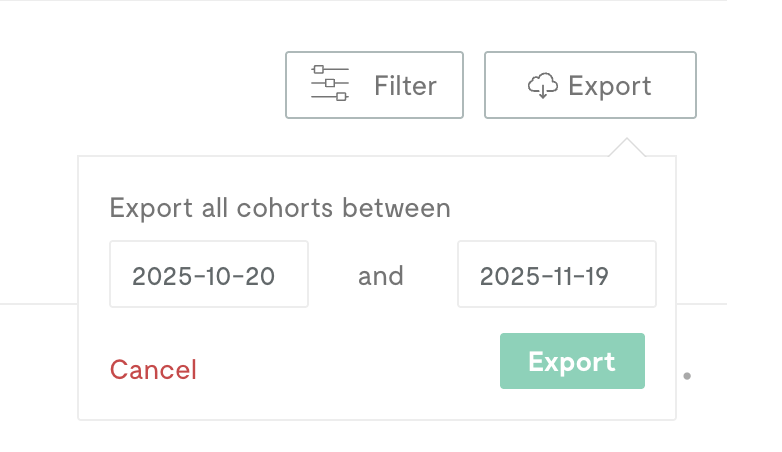 Click *Export* to generate the report. The export may take up to a minute to process. Once complete, the file will download automatically to your browser's download location.
 ## What's Included
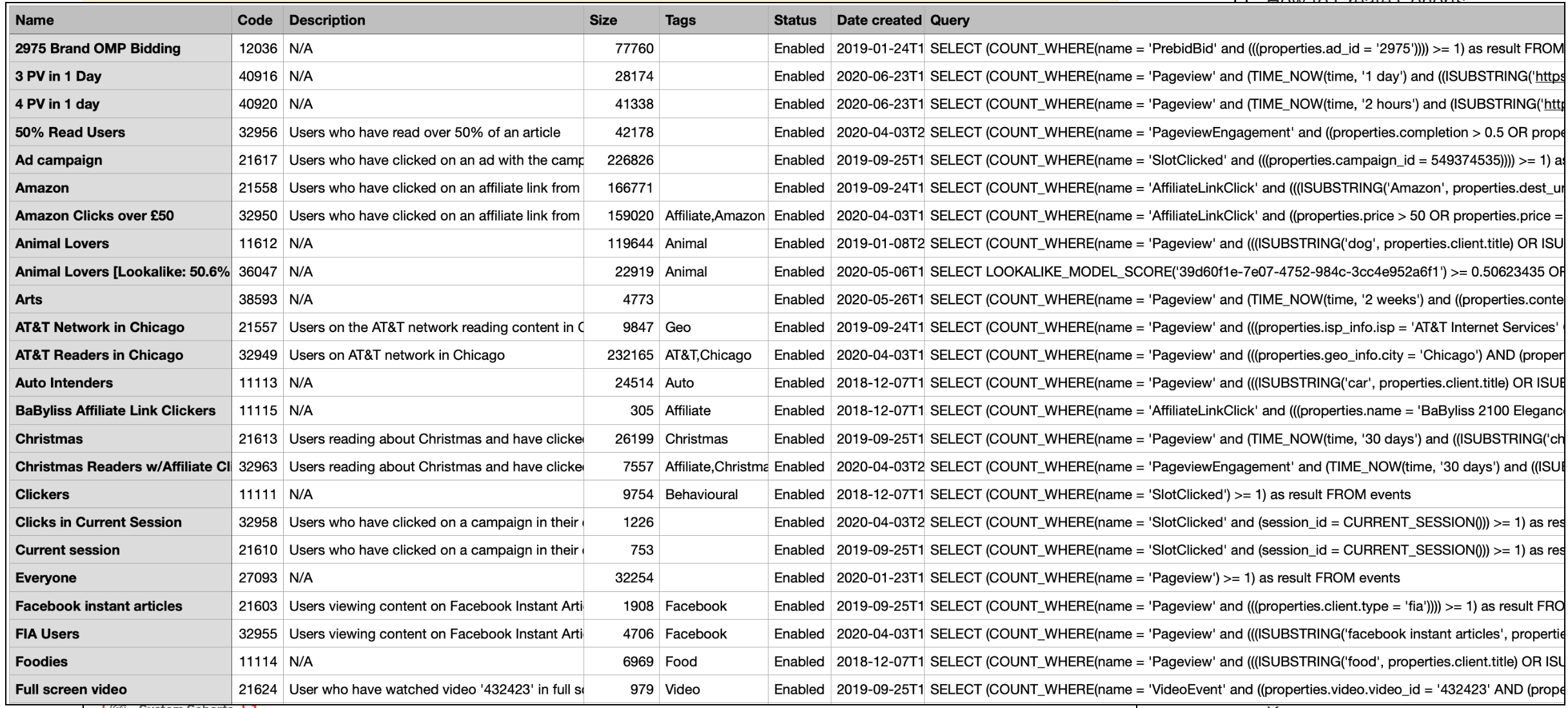
The exported report includes all cohort metadata and logic:
* Cohort name and description
* Cohort code
* Tags
* Audience size
* Precision type
* Date created
* Status (Enabled/Disabled)
* Full cohort logic
The date range only affects the Audience Size column in the export. Cohorts created after the selected date range will still appear in the exported list but will show an Audience Size of 0. The report includes all cohorts in your project regardless of which workspace you are currently viewing.
## Next Steps
Build a new audience segment
Return to product overview
## What's Included
The exported report includes all cohort metadata and logic:
* Cohort name and description
* Cohort code
* Tags
* Audience size
* Precision type
* Date created
* Status (Enabled/Disabled)
* Full cohort logic
The date range only affects the Audience Size column in the export. Cohorts created after the selected date range will still appear in the exported list but will show an Audience Size of 0. The report includes all cohorts in your project regardless of which workspace you are currently viewing.
## Next Steps
Build a new audience segment
Return to product overview