> ## Documentation Index
> Fetch the complete documentation index at: https://docs.permutive.com/llms.txt
> Use this file to discover all available pages before exploring further.
# Using Keyword Explorer
> How to use AI-powered keyword recommendations for building interest-based cohorts
## Overview
Keyword Explorer uses machine learning to offer AI-powered keyword recommendations for building interest-based cohorts. By analyzing the similarities and connections between keywords, it suggests relevant terms that maximize both reach and relevance.
**Prerequisites:**
* Access to the Permutive Dashboard with cohort creation permissions
* Keyword Explorer enabled for your workspace
* Contextual API implemented on your website OR Permutive SDK deployed (the SDK can segment contextual cohorts without direct API implementation)
## Steps
Select *Keyword Explorer* as your predicate type. A modal will open with the Keyword Explorer interface.
Enter a **Topic** in the search bar and press Enter. Topics can be single words (e.g., "Fashion") or multiple words (e.g., "Tour de France"). Add multiple topics to narrow down to a specific concept (e.g., "cocktail" + "drink" vs "cocktail" + "dress"). Alternatively, you can input a prompt in the form of a targeting requirement (e.g., "Users interested in luxury travel"). Keyword Explorer will first transform the prompt into relevant topics and then show the results.
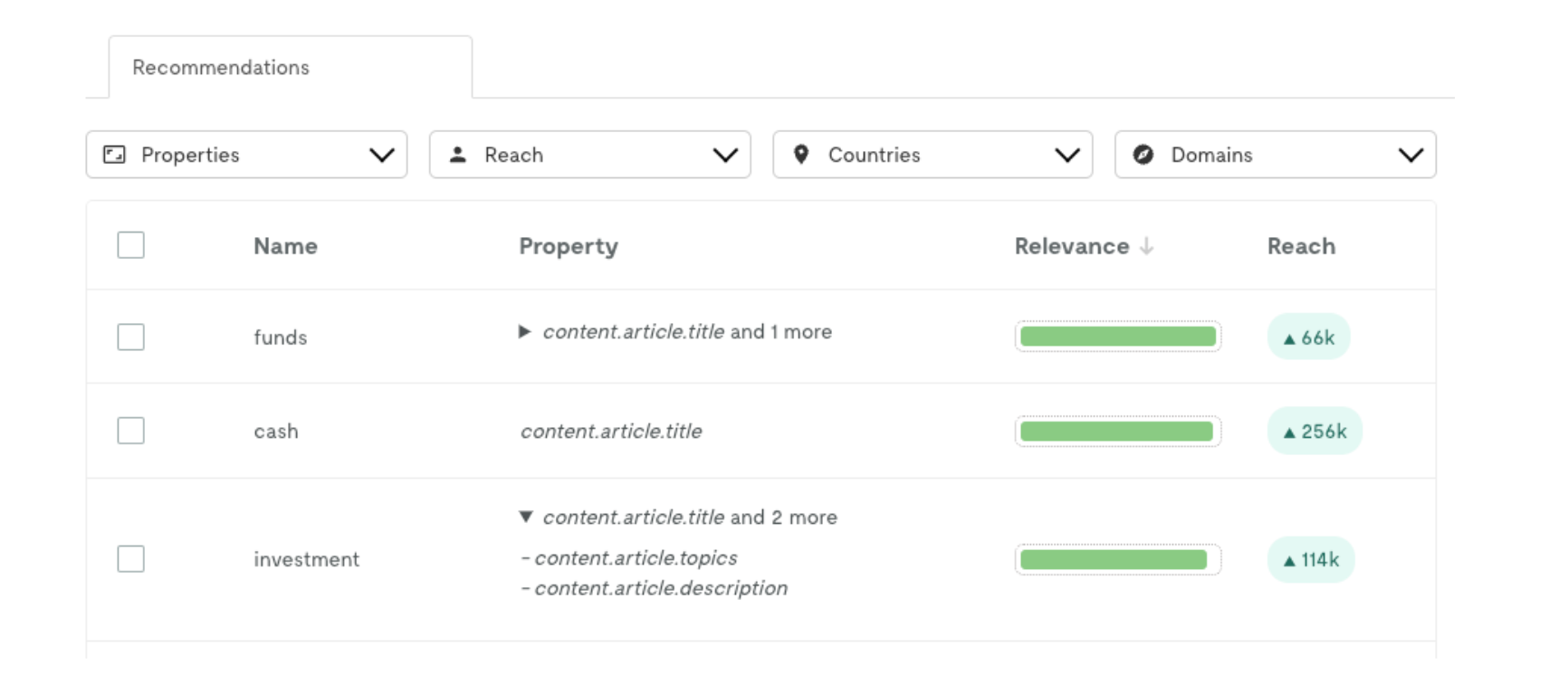
Review the **Recommendations** table, which includes:
* **Name**: Similar or adjacent keywords to your topic
* **Property**: The Pageview properties where each keyword appears
* **Relevance**: How closely related the keyword is to your topic (based on semantic similarity)
* **Reach**: Incremental reach (accounts for overlap between already-selected keywords)
Use **Filters** to refine recommendations:
* **Properties**: Limit to specific Pageview properties
* **Reach**: Set a minimum reach threshold
* **Countries**: Filter by geographic location (based on `geo_info`)
* **Domains**: Filter by specific domains (based on `client.domain` or `client.url`)
Select the keywords you want to include by checking the boxes next to them.
Review the **Total Reach** (deduplicated user count for your selection).
Click *Add* to apply your keyword selections to the cohort.
 ## Example
Build a Fashion cohort using Keyword Explorer:
* Topic: "Fashion"
* Select relevant recommendations: "style", "designer", "clothing", "trends", "runway"
* Filter by Property: `client.title`, `client.tags`
* Filter by Reach: Minimum 1,000 users
* Total Reach: 45,000 users (deduplicated)
**Keyword Explorer Settings**
Keyword Explorer settings are configured at the organization level under *Settings > Integrations > Keyword Explorer*. You must be at the root workspace to access these settings.
* **Minimum Reach**: Set a global minimum reach threshold for all recommendations
* **Property Selection**: Choose which Pageview properties to include in the model training and recommendations
* **Tokenize**: Enable for properties that require keyword extraction (like article titles), disable for properties that already contain individual keywords (like tags)
## Next Steps
Learn the full cohort creation process
Return to product overview
## Example
Build a Fashion cohort using Keyword Explorer:
* Topic: "Fashion"
* Select relevant recommendations: "style", "designer", "clothing", "trends", "runway"
* Filter by Property: `client.title`, `client.tags`
* Filter by Reach: Minimum 1,000 users
* Total Reach: 45,000 users (deduplicated)
**Keyword Explorer Settings**
Keyword Explorer settings are configured at the organization level under *Settings > Integrations > Keyword Explorer*. You must be at the root workspace to access these settings.
* **Minimum Reach**: Set a global minimum reach threshold for all recommendations
* **Property Selection**: Choose which Pageview properties to include in the model training and recommendations
* **Tokenize**: Enable for properties that require keyword extraction (like article titles), disable for properties that already contain individual keywords (like tags)
## Next Steps
Learn the full cohort creation process
Return to product overview